RStudio and projects
R is the engine. RStudio is the workshop built around it: an editor, a console, your objects, your plots and your files in one window. You can run R without it — from a terminal, from VS Code, or from a notebook — but for learning and for ordinary analysis it removes a lot of friction.
This section is the part of the chapter that people skip and later wish they had not. Almost every "R cannot find my file" problem is solved here.
Definition
Three names for two things.
- RStudio is the program — the window with the four panes. Free, open source, and still called RStudio.
- Posit is the company that makes it. It was called RStudio, Inc. until November 2022, when it renamed itself to signal that it now builds for Python as well as R: "not about pivoting from R to Python … about broadening and embracing the Python community as well as the R community". The IDE deliberately kept its old name.
- Positron is a different, newer editor from the same company, built on VS Code.
So you download RStudio from posit.co, your Start menu says RStudio, your project files still end in .Rproj, and a tutorial from 2019 that credits "RStudio, Inc." is talking about the same software.
The four panes
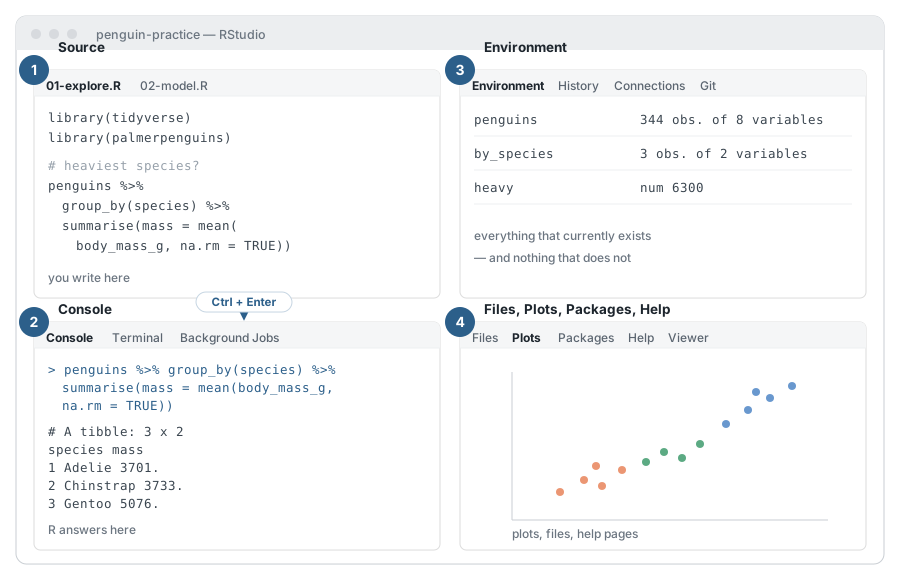
Figure 0.5: The RStudio window. Schematic, because the real one moves its furniture with every release.
- Source (top left) — where scripts are written. This is where you work. Tabs across the top are your open files.
- Console (bottom left) — where R answers. Fine for trying things out, wrong for anything you want to keep.
- Environment (top right) — the objects that currently exist. A quick way to check whether the thing you think you made is the thing you actually made. Its neighbouring tabs hold your command history and, once a project uses Git, a Git tab.
- Files, Plots, Packages, Help, Viewer (bottom right) — the rest: your project folder, the last graph you drew, the help page you are ignoring.
The arrow in the middle is the single most useful habit: type in the Source pane, then send the line down to the console with Ctrl + Enter. The answer appears below, and your script stays complete — so it will still run tomorrow.
| Shortcut (Windows/Linux) | What it does |
|---|---|
Ctrl + Enter |
Run the current line or selection |
Ctrl + Shift + Enter |
Run the whole script |
Alt + - |
Insert <- |
Ctrl + Shift + M |
Insert %>% |
Tab |
Complete a name; press it constantly |
F1 |
Help for the function under the cursor |
Ctrl + Shift + F10 |
Restart R |
On macOS, Cmd replaces Ctrl.
The project is the unit of work
A project is not a script. It is a folder containing data, code, output and notes that belong together — and RStudio can treat it as one thing.
File → New Project → New Directory → New Project creates a folder with an .Rproj file inside. From then on, open the project rather than the individual files.
What that buys you:
- The working directory is the project folder, automatically. No
setwd(), ever. - Each project gets its own R session, its own history, its own open files. Switching projects switches context.
- The folder can be moved, renamed, zipped, copied to a colleague or cloned from GitHub, and everything still runs.
That last point is the whole idea: a project is self-contained. Everything it needs is inside it, and every path is written relative to its root.
Where is my data?
This is the most common problem in every introductory course I have taught, and it does not go away with experience. Doctoral students meet it too. It always looks like this:
penguins <- read_csv("penguins.csv")
#> Error: 'penguins.csv' does not exist in current working directory
#> ('C:/Users/Marco/Documents').
The file plainly exists. It is right there in the Downloads folder; you can see it. R still says no.
The reason is a mismatch that nothing on screen makes visible: R sits in one folder, your file sits in another, and where your script is saved has nothing to do with either. A script on the Desktop does not make the Desktop the working directory. Opening a file in the editor does not move R to it. R was given a folder when the session started, and it stays there until told otherwise.
So the first question is never "why is R broken" but "where does R think it is?"
Those two lines diagnose nine out of ten cases. If list.files() does not show your file, R cannot read it, no matter how correct the file name looks.
There are two ways out, and only one of them is any good.
The bad fix is to give the full address of the file in Downloads. It works this afternoon. It breaks when you tidy up your folders, and it fails immediately on anyone else's computer — including the version of your computer that exists after a reinstall.
The good fix takes ten seconds: move the file into your project. Put penguins.csv in the project's data/ folder, then write the path relative to the project root.
The Downloads folder is a waiting room, not an archive. Data that matters to a project lives in the project.
Absolute and relative paths
An absolute path starts at the root of your disk and describes exactly one place on exactly one computer. Every operating system spells this differently:
| System | Looks like |
|---|---|
| Windows | C:/Users/Marco/Documents/thesis/data/penguins.csv |
| macOS | /Users/marco/Documents/thesis/data/penguins.csv |
| Linux | /home/marco/documents/thesis/data/penguins.csv |
A relative path starts wherever R currently is, and is the same on all three:
That difference is not cosmetic. An absolute path is a promise only your machine can keep; a relative path is a promise the project keeps. Write the first into a script and you have quietly made it unshareable — including with your future self.
Amazing Fact
Copy a path out of the Windows Explorer address bar, paste it into R, and R refuses it outright:
read_csv("C:\Users\Marco\data\penguins.csv")
#> Error: '\U' used without hex digits in character string
The backslash is R's escape character: \n means a new line, \t a tab, and \U opens a Unicode code point. Windows uses that same symbol to separate folders, so a copied Windows path arrives in R as a string full of instructions.
Two fixes, both boring: write / instead, or double every backslash (\\). Forward slashes work on Windows, macOS and Linux alike, which is why they are the better habit — and why R itself prints paths that way even on Windows.
macOS and Linux never have this problem, because their separator is already /. What they do have instead: paths with spaces (/Users/marco/My Thesis/) and a case-sensitive file system, where Penguins.csv and penguins.csv are two different files. On Windows they are one.
Getting a path without typing it: in the Windows Explorer, Shift + right-click a file offers Copy as path (then swap the backslashes). In the macOS Finder, right-click and hold Option to get Copy … as Pathname, which is already in R's format.
The here package removes the last of the guesswork. here() builds a path from the project root, whatever the current working directory happens to be — which matters as soon as an R Markdown file, which runs in its own folder, needs the same data as a script.
A folder that scales
A layout that works for a term paper and still works for a dissertation:
my-project/
├── my-project.Rproj
├── README.md            <- what this is, in five lines
├── data/
│   ├── raw/             <- exactly as received. Never edited.
│   └── processed/       <- what your code produced
├── R/                   <- 01-import.R, 02-clean.R, 03-analysis.R
└── output/
    ├── figures/
    └── tables/
The important rule is the comment on data/raw: treat it as read-only. If cleaning happens in code rather than in the file, you can always go back — and anyone can see what you changed.
Restart R, often
RStudio offers to save your workspace when you quit and to restore it when you return. Turn both off: Tools → Global Options → General, uncheck Restore .RData into workspace at startup, and set Save workspace to .RData on exit to Never.
It sounds like losing work. It is the opposite. A restored workspace hides objects whose origin nobody remembers — including the one your results secretly depend on, created by a line you have since deleted.
Instead, restart R regularly (Ctrl + Shift + F10) and re-run your script from the top. If it still works, your analysis is real. If it does not, you have just found a bug that would otherwise have surfaced the night before a deadline.
Your script, not your workspace, is the analysis.
Your Turn: Twenty minutes that pay for themselves
- Create a project: File → New Project → New Directory. Call it
penguin-practice. - Add the folders
data/,R/andoutput/. - In
R/01-explore.R, writelibrary(tidyverse),library(palmerpenguins), and three lines that produce the grouped summary from the section above. - Save a plot into
output/withggsave("output/mass-by-species.png"). - Restart R and run the script from the top. Does it work from a cold start?
Reading
Jenny Bryan's Project-oriented workflow is the short, sharp argument for everything in this section — including her memorable threat against scripts that begin with setwd(). What They Forgot to Teach You About R covers the rest of the workshop.